Step 01
Install HueHouse
Download HueHouse from the App Store, then open it on your iPhone. Start picking, organizing, and exporting colors instantly with single-handed ease.
Tutorial
A practical guide for getting HueHouse into your design and development workflow on iPhone and iPad.
Step 01
Download HueHouse from the App Store, then open it on your iPhone. Start picking, organizing, and exporting colors instantly with single-handed ease.
Step 02
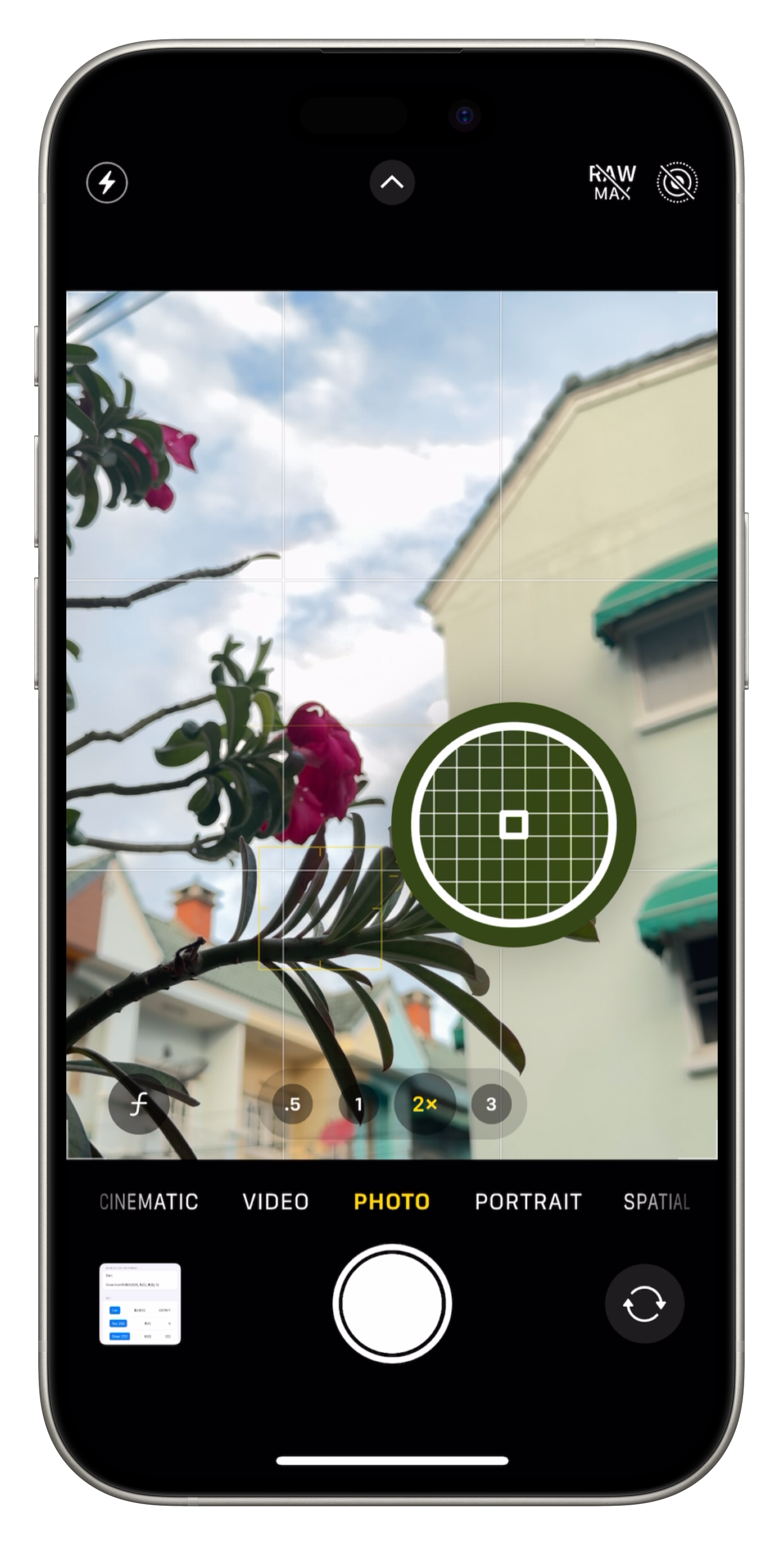
Open the picker and move the loupe over the pixel you want. Use the native widget or the magnifier to quickly grab color details from photos or any screen.
Step 03
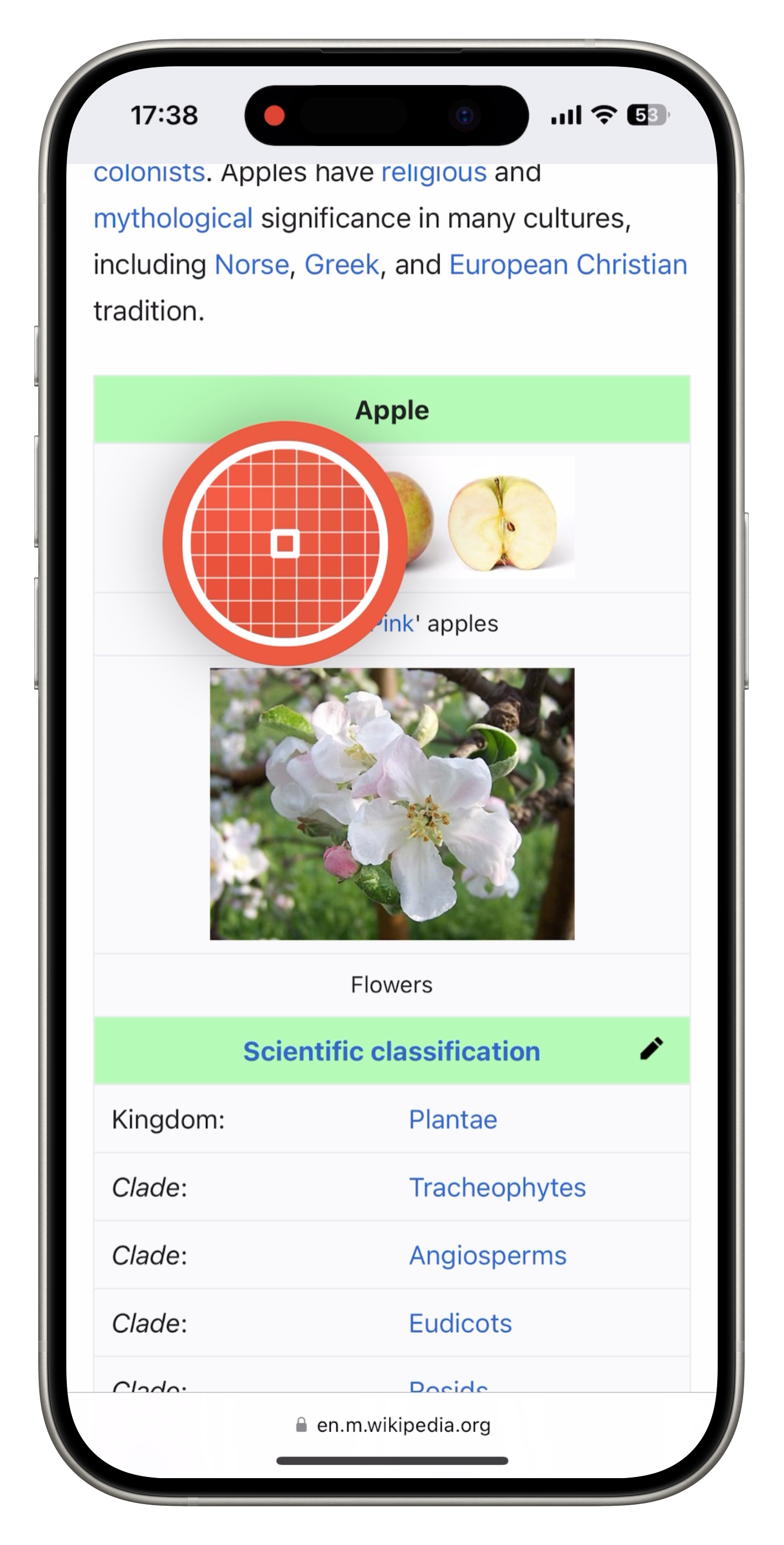
Send useful colors into named collections. Use collections for brands, client projects, illustrations, UI themes, or anything you need to return to later.
Step 04
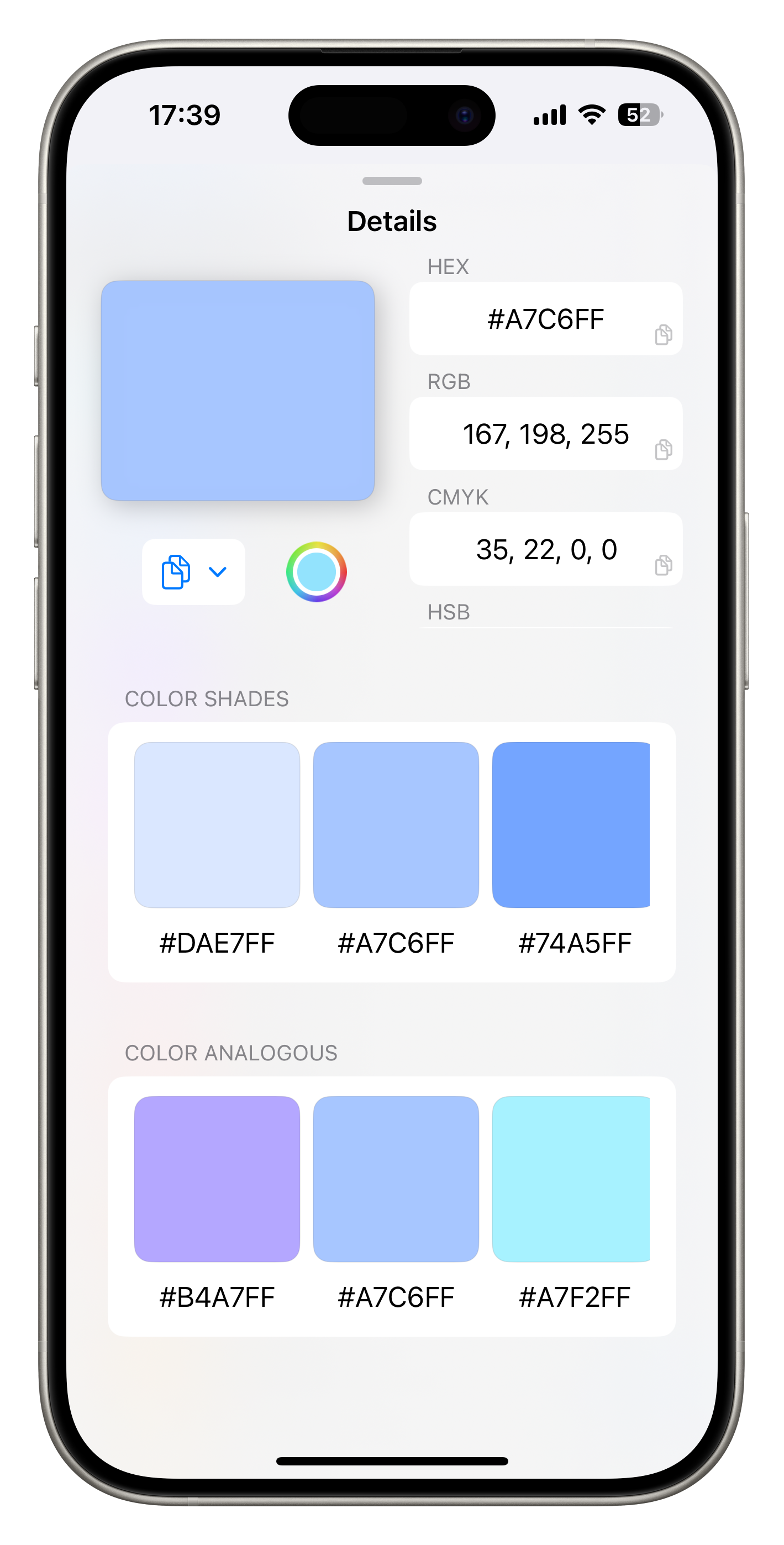
Open a color detail and copy HEX, RGB, CMYK, HSL, HSB, Swift, CSS, or another configured format. Reorder formats so the one you use most is always near the top.
Step 05
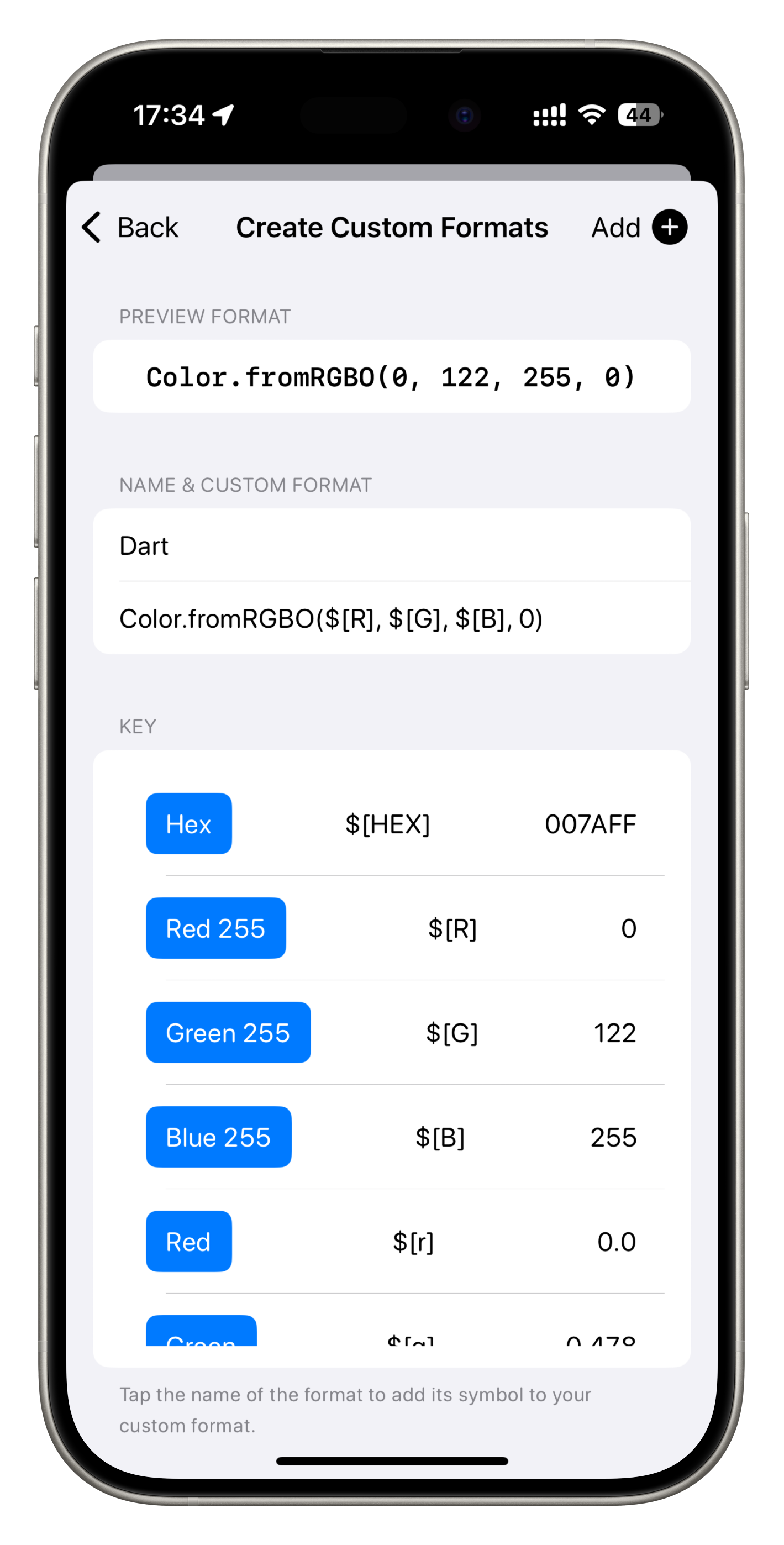
Build a custom pattern for your framework or design system. HueHouse can turn the same saved color into snippets for SwiftUI, CSS, Dart, Compose, or your own internal token format.
Step 06
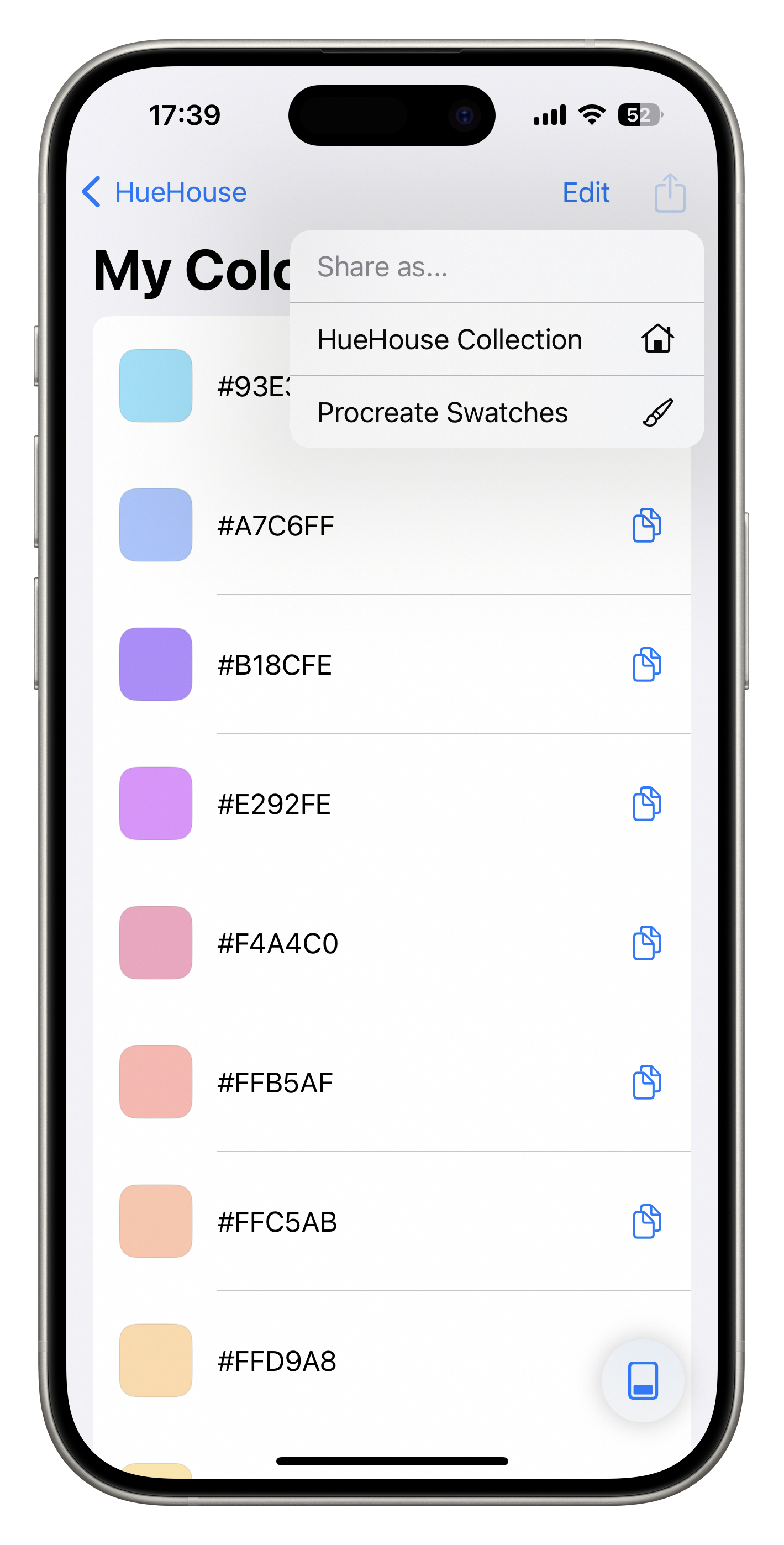
Use export when a palette needs to travel. Share HueHouse collection files with collaborators or use .swatches for tools that support standard swatch files.
Install HueHouse, open it beside the thing you are sampling, and let the loupe do the tiny work.